Adding Your J-Card to Your Mobile Device
You are nearing the culmination of your academic journey at Johns Hopkins; but before you can walk across the stage, your J-Card is required during check-in before the ceremony.
If You Already Have a J-Card
Whether you have the physical card, or a version on your mobile phone, please remember you need to bring that identification with you to access the KSAS Master’s Graduation Ceremony.
If You Do Not Have a J-Card
The recommended approach at this time is for you to secure the mobile version of the J-Card.
5 Steps to Set Up Your Mobile J-Card:
- Access your myIT login code
To get started, make sure your myIT login code is available in the Microsoft Authenticator application. Do you need help to set-up this multi-factor authentication process? - Download the eAccounts application
Visit your phone’s App Store to download the eAccounts app to your mobile device from the iOS App Store or the Google Play Store. - Sign in with your JHED credentials
Open the eAccounts app and use your JHED ID and password to login. - Connect the J-Card to your phone’s digital wallet
Follow the prompts and then add your J-Card to your digital wallet. View instructions to add your J-Card to Apple Wallet, Google Wallet, or Samsung Wallet. - Confirm the setup was successful
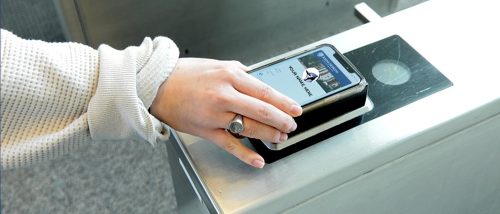
Open your wallet to ensure your Mobile J-Card is visible. Once added, your new ID can be used wherever J-Cards are accepted by holding your device near the reader.
If you have any questions about this process, please email [email protected].
If Your JHED ID Credentials Have Expired
Perhaps you completed your degree during the Summer or Fall semesters in 2025, and now you are being asked to create a new Mobile J-Card. If this is the case, and your university credentials are no longer accessible, you will need to be prepared to present at least one government-issued photo identification at check-in.